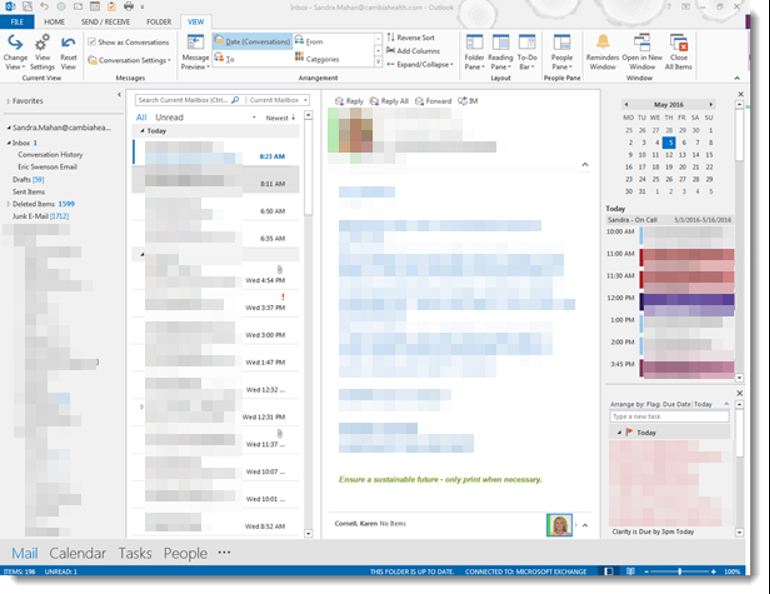
Sometimes there isn’t a lot of room in Outlook to see everything when using the reading pane, especially if you have a smaller monitor or are using a laptop. Here are a few tricks to free up space:
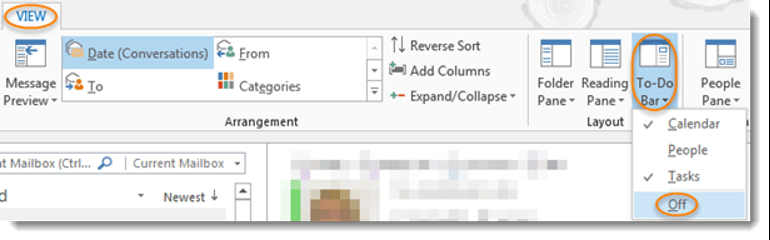
To remove the calendar and tasks from the right-side of the screen, select View from the ribbon bar, then the To-Do Bar icon and select Off:
To minimize the folder structure on the left, you can either select View from the ribbon bar, then the Folder Pane icon and select Minimized, or you can click the < arrow above the folder list:
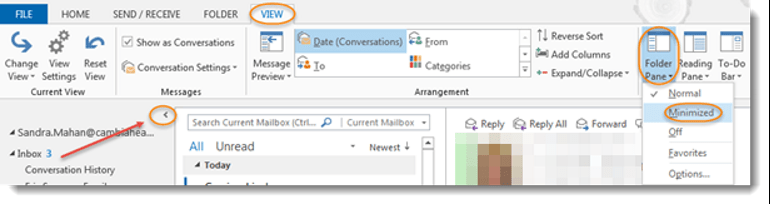
Before:
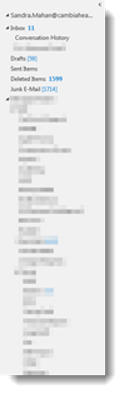
After:

To reduce the size at the bottom of the screen, click on the … and choose Navigation Options, then check the Compact Navigation box:
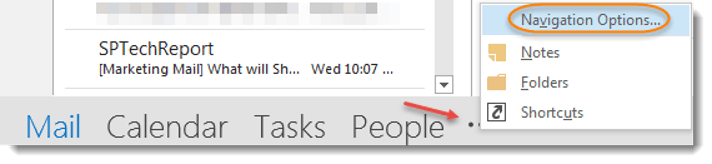

Before:

After:

To minimize the email details, click the minimize icon on the far right of the e-mail information.
Before:

After:

Following these simple steps, you will have a larger area to view the email content when quickly scrolling through your inbox.

 One Minute Office Magic