Have you ever had a PDF file where you’d like to extract certain pages to create a new PDF file, but you don’t have any software (that you know of) that would allow you to do that? Now you do! You can use OneDrive on the web to open up a PDF file and extract selected pages to make a new PDF file. Here’s how that works…
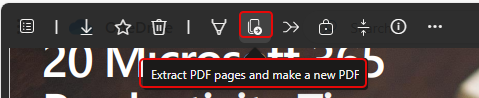
In this example, I have a PDF of a PowerPoint slide deck that contains a large number of pages. To start the extract process, I click on the Extract PDF pages and make a new PDF icon:
I see a layout of all the pages in the PDF, and I can select each page that I want included in the new PDF file. In this case, I wanted the first three pages. Once selected, I click the Extract button:

I then get a prompt to save the new file, using the same file name with “Extracted from” added to the front of the file name. That way I am not destroying the original:

Here you see that I now have the original and the new file:


 One Minute Office Magic