I recently covered how Copilot provides an automatic summary of a Word document from SharePoint or OneDrive. Copilot also does much the same thing with a PDF document, but it’s not as “automatic” as it is with Word. Here’s how the summary works for PDFs…
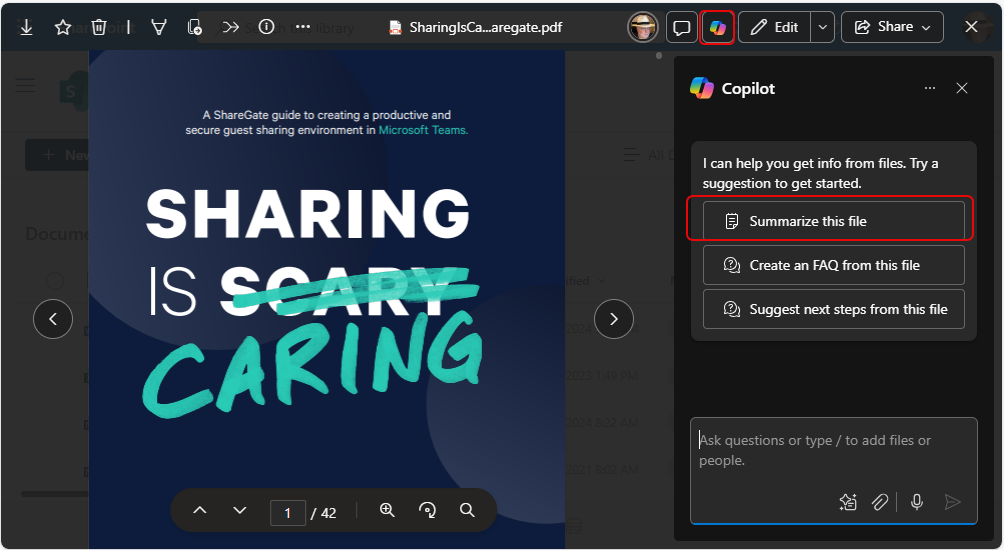
In the PDF example, I don’t see Copilot automatically generating the summary at the top of the document. Instead, I need to click the Copilot icon in the menu bar, which launches the Copilot chat pane. From there, I have options as to what I can ask Copilot to do with the PDF:

For our example here, I click on Summarize this file and then click the Send icon to send the request to Copilot:

Copilot then generates the short summary/key points of the PDF document. I don’t get the Insights content like I do in Word, but I do end up with an overview of the PDF document so that I have some context before diving into it:

Much like the summary in Word, this is a handy feature that can help you with overview and focus before you dive into 100 pages of text.
Do remember, Generative AI can be error-prone, so you do need to review the results before you take any actions.

 One Minute Office Magic