Whiteboard has allowed comments for some time, but they didn’t allow you to @ mention someone in the comment. This was already a feature in applications like Word, Excel, and PowerPoint. Now Whiteboard will work the same way. Here’s how that looks and works…
If you are going into Whiteboard for the first time since this was implemented, you’ll likely get this pop-up letting you know that the feature exists:

When you’re in the Whiteboard and create a comment, you can now use the @ symbol followed by the name of the person you want to notify. Once you have their name and message in place, click the Send icon:
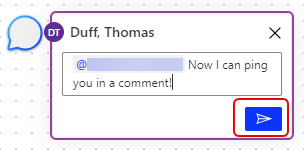
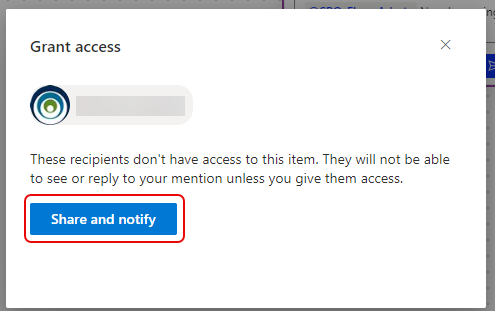
If the person does not have access to the Whiteboard, this message will appear and allow you to grant them access so they can see and work with the content. Click on Share and notify to grant them access:
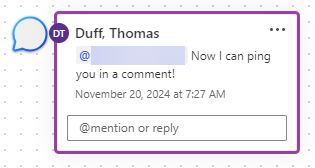
This is what the comment looks like after it’s been sent to the person:
Finally, the person will receive an email (if they aren’t already in the Whiteboard) letting them know they’ve been “pinged” and to go look at the comment:


 One Minute Office Magic