Have you ever had a list, like perhaps a suggestion list, where you’d like to have some easy way for people to vote on which ones they like or give them a 1 through 5 rating? If you’re working with a SharePoint Teams site, you can do that with the Ratings feature! Here’s how that works…
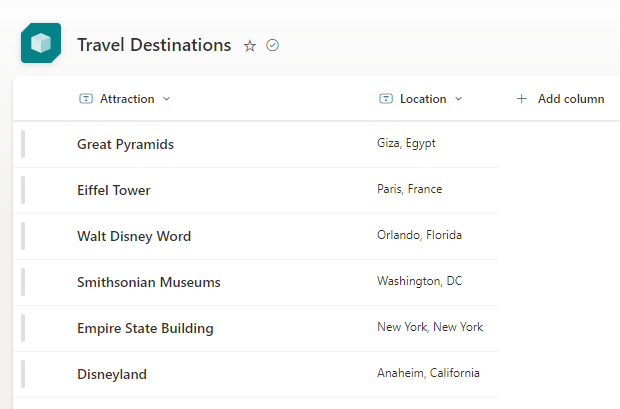
Here’s a sample SharePoint list that has travel destinations that I’d like people to like and/or rate. Keep in mind that the following process also works if you have a SharePoint library that you’d like to add ratings to:
To add the Ratings feature, go to the List settings and select Rating settings:

In Rating Settings, turn the Rating Settings on, and select either Likes (which will be heart clicks) or Start Ratings (1 through 5 stars). Having said that, you actually get both of them regardless of which one you choose:

When you look at your list columns, you now see the three new ratings fields:

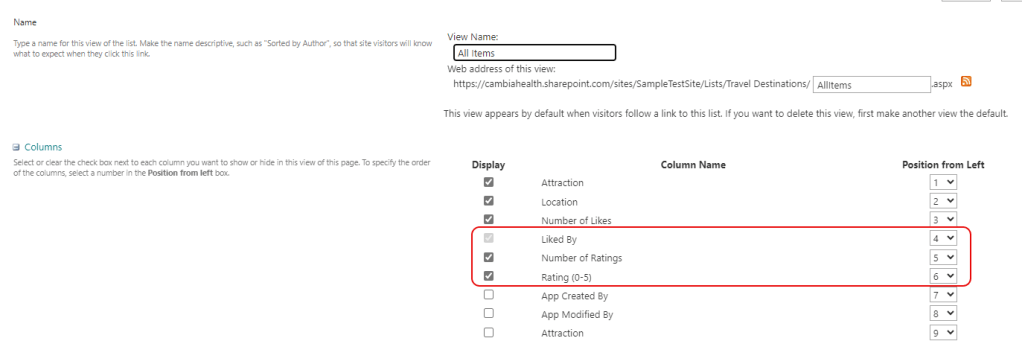
To add them to your view, just pick a view and select one or more of those rating fields. For this example, I selected all three:
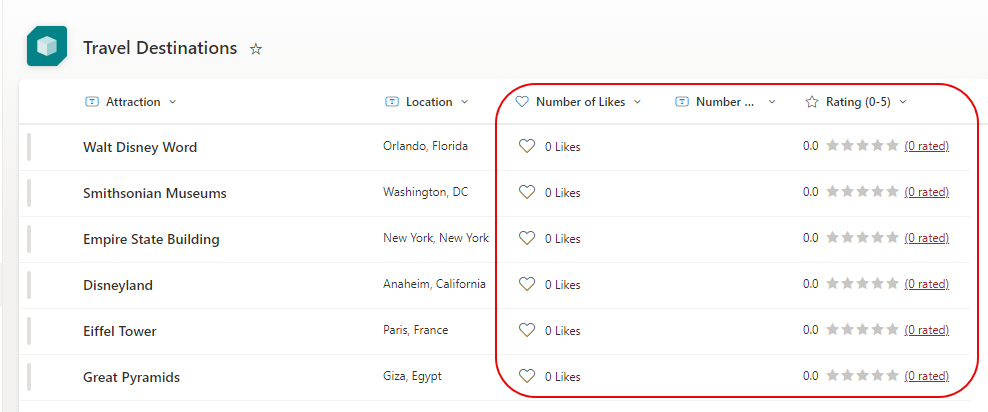
Now when I look at my sample list, I have the ability to click on the hearts for likes as well as a 1 through 5 rating of the destination:
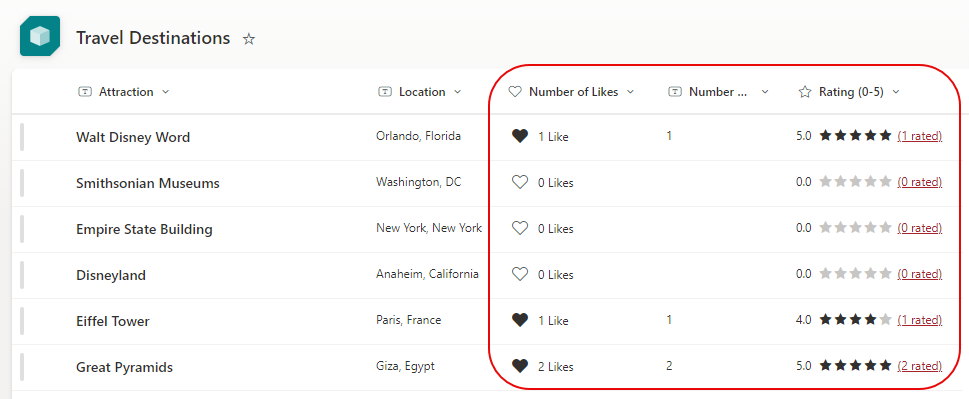
Here’s what it looks like after a few people have made some selections:
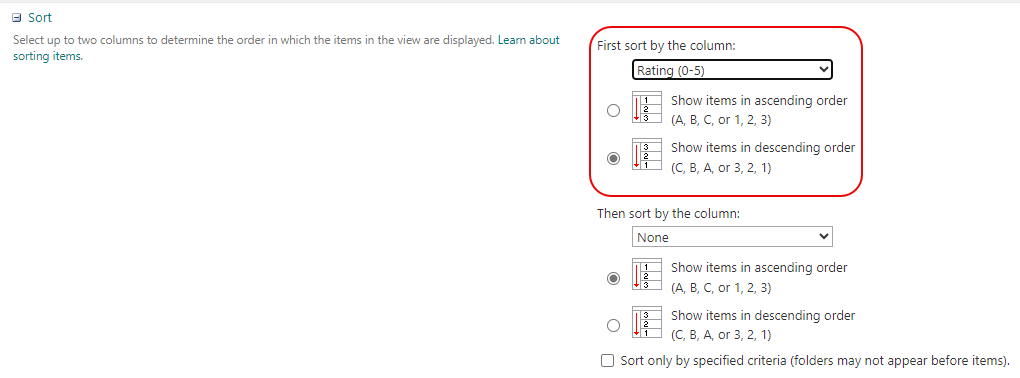
One thing that is useful is to go into the view and sort by the Ratings field in descending order so that all the popular destinations filter to the top of the list:
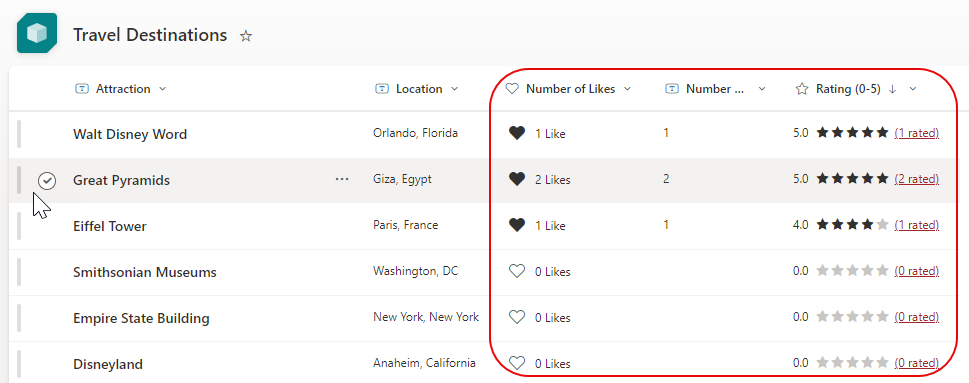
And here’s the results after the sorting changes:
One thing to note… you can only do these types of ratings in SharePoint Teams sites. At this point in time, SharePoint Communication sites do not support the ratings feature.

 One Minute Office Magic